TEXT SCRAMBLING in TRIAL VERSION OUTPUT! In evaluation mode, Help+Manual will scramble individual characters in random words in your published output files. This is a limitation of the free trial version. This help system was created with an evaluation copy of Help+Manual.
One of the main differences between Help+Manual and a word processor is that in a word processor you work in a single document. In contrast to this, each topic in a Help+Manual project is actually an independent file that is like a word processor document. However, Help+Manual manages all these files as though they were a single document. For example, you can perform search and replace operations globally in all your topic files.
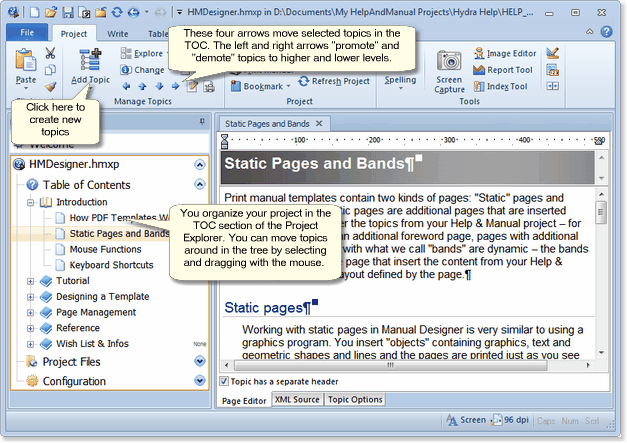
You can move topics around in the Table of Contents (TOC) section of the Project Explorer with the keyboard and the mouse and you can also change the „level“ topics in the TOC tree hierarchy.
Table of Contents (TOC) Overview
|
|
Moving topics around in the TOC
|
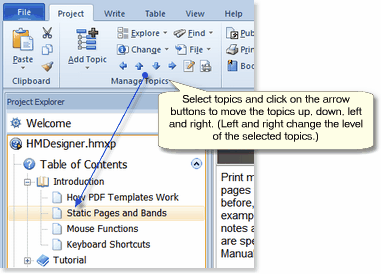
·Use the arrow tools in Project > Manage Topics to move selected topics around in the TOC:
·Drag a topic onto another topic to make it the child (sub-topic) of the target topic:
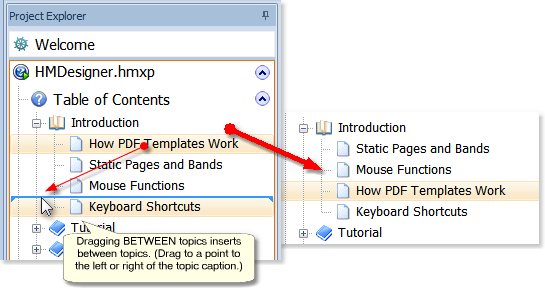
·Drag a topic between two topics to insert it between them:
|

Using cut and paste in the TOC
|
You can also use normal cut and paste methods to move topics around in the TOC and to copy and move topics between projects. There are two ways to do this: ·Open the second project in the current instance of Help+Manual. The second project will be displayed as an additional item in the Project Explorer and you can then cut and paste between the two projects in the Project Explorer. ·Open Help+Manual a second time, open the second project there and then cut and paste between the projects. There are three different ways to cut and paste in the TOC: ·Right-click in the TOC to display Cut, Copy and Paste options. ·Use the tools in the Clipboard group in the Ribbon. ·Use Ctrl+X and Ctrl+C to cut or copy and Ctrl+V to paste. |
Managing files in the Topic Files section
|
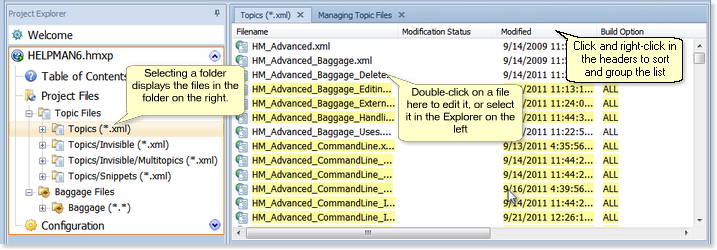
All the topic files in your TOC are also available in the Project Files > Topic Files section of the Project Explorer. These are not second copies of your topic files, they are the same files! The TOC entries are really just links pointing to your topic files. The TOC shows the Table of Contents structure with links to the topic files, the Topic Files section only shows you the files. In addition to your TOC topics, the Topic Files section can also contain topic files not included in the TOC, for example topic files for popups and topics that are only accessible by clicking on hyperlinks. Folder display and file display in Topic Files: #The folders in the Project Files section are just like folders in Windows Explorer. You can delete topic files and you can shift them from one folder to another if you have created multiple folders. However, there is no „table of contents“ structure here because you are really just looking at disk folders containing lists of files.
|