


TEXT SCRAMBLING in TRIAL VERSION OUTPUT! In evaluation mode, Help+Manual will scramble individual characters in random words in your published output files. This is a limitation of the free trial version. This help system was created with an evaluation copy of Help+Manual.
Tables can be used both to arrange tabular data and as a formatting tool, in the same way as in HTML pages. However, in preparation for responsive web design we strongly recommend that you avoid using tables for layout whenever possible, because they break responsive design.
How to insert a quick table
|
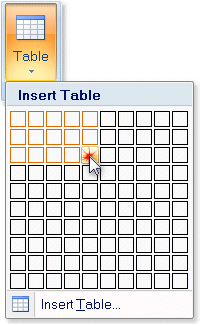
1.Click in the topic at the position where you want to insert the table. 2.Select Insert > Table in the Write tab or New > Table in the Table tab. 3.Move the mouse in the grid to highlight the number of columns and rows you want to have, then click to insert the table,
|
How to insert a table with settings
|
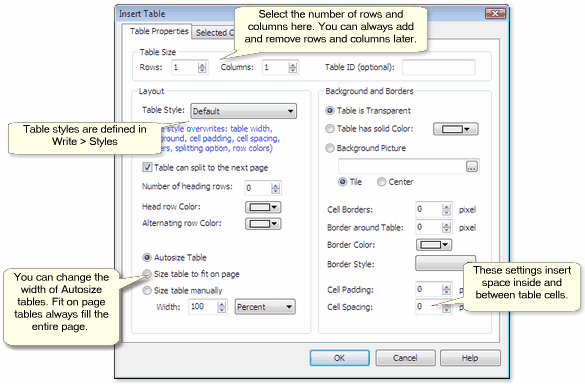
1.Click in the topic at the position where you want to insert the table. 2.Select Insert > Table in the Write tab or New > Table in the Table tab, then select Insert Table to display the Insert Table dialog.
3.Select the number of rows and columns and choose the color and cell border settings. For the moment leave all the other settings as they are – you can always change them later. 4.Click on OK to insert the table. |
Manipulating tables
|
·Drag column borders with the mouse to change column widths. This can be tricky and works differently from static word processor tables! ·To change the width of the entire table, right-click in the table, select Table > Properties and define the table width settings. ·Click in the table and select the Table tab to display the table tools – most of these are self-explanatory. ·Use the Lock Column tool in the Table tab to make column widths fixed or dynamic. ·Click in the table and select Table > Table > Properties to edit the table properties. ·Click and drag to select cells, columns and rows, then select Table Properties and apply settings in the Selected Cells tab (if you don’t select anything the settings apply to the current cell only). |
Using table styles
|
You can define table styles in the Edit Styles dialog in the same way as you define styles for paragraphs and text. Applying a style to a table: #Click inside the table, select Properties in the Table tab and then select the style in the Table Style: field. Creating a table with a style: #Create a table with Table > Insert Table in the Write or Table tab and select the style in the Table Style: field when entering the table configuration settings. Any additional settings you enter in the Insert Table dialog will override the style settings for that table. |


