


TEXT SCRAMBLING in TRIAL VERSION OUTPUT! In evaluation mode, Help+Manual will scramble individual characters in random words in your published output files. This is a limitation of the free trial version. This help system was created with an evaluation copy of Help+Manual.
In addition to text you will also want to add graphics to illustrate your topics. This tutorial shows you how to add ordinary graphic images to your topics from files and by cut and paste.
You can also use Help+Manual’s built-in screen capture utility to capture images of objects on your computer screen and insert them in your topics. In addition to graphics you can also insert video files other programs.
|
Graphics files are the only project components that are not stored as an integral part of your project. However, you can put your folder(s) containing your graphics files in your project folder. This is also recommended. |

Inserting a graphic from a file
|
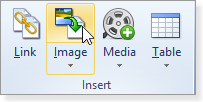
1.Click in the position where you want to insert a graphic, then select Image in Write > Insert:
2.This displays the Open Image dialog. Select the image you want to insert, then click on Open to insert the image in your document. 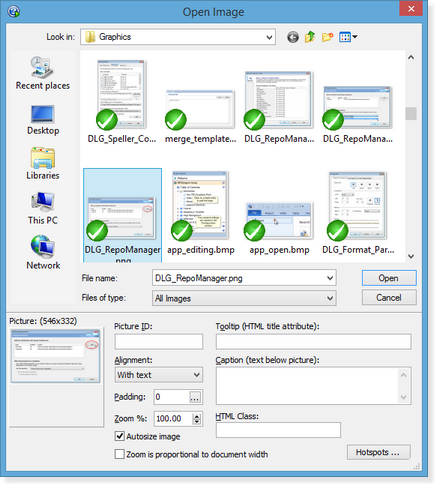 Click on the preview thumbnail for a full-size preview. Picture ID: An optional ID for use in HTML output (ignore this for now!) Tooltip: Displays a tooltip when the user mouseovers the image in HTML formats. Caption: A caption displayed below the image Padding: Space around the image (in pixels), you can enter individual values for each side with Alignment: Position of the image in relation to the text on the page Zoom% / Autosize: Resize the image or display in full size. Zoom is proportional to document width: Make image responsive. The zoom percentage is then relative to the container width (document page or table cell). 3.If the image is not in your project folder you will be asked whether you want to copy it or add the path to the image location to your project. |

Where to store your images
|
Help+Manual allows you to use images in any location. However, it is better to store your images in a one or more graphics folders together with your project – otherwise it is very easy to lose track of your images. You can easily move all your images to different locations later if you need to. |
Inserting images with cut and paste
|
1.Copy the image in your graphics program, then switch to Help+Manual and select Write > Clipboard > Paste or press Ctrl+V. You can then either embed the image (not recommended!) or choose the Convert Embedded Image option (recommended!). Choosing Convert will display the Save Image dialog with the following options: ·File name: Give the file a descriptive name! ·Save as type: You can save the image as a BMP, GIF, JPEG, PNG or Impict IPP image. Use BMP for most purposes, Help+Manual converts and compresses BMPs automatically when you publish your project. 2.Then just click on Save to save the graphics file. It will be inserted in the topic at the current cursor position. After inserting you can double-click on the image to display and edit the image properties and settings. |
Pasting graphics from MS Word
|
If you paste graphics from MS Word together with text a dialog will be displayed asking you to convert the image data to an external file. This is recommended, because embedding images in your topics uses up a huge amount of memory and computer resources (many times the uncompressed size of the image itself). Always select the option for converting embedded images to external files after pasting them from Word or other programs. If you forget to do this you can always access the conversion option by right-clicking on the embedded image after inserting it. |
WordPress-Datenbank-Fehler: [You have an error in your SQL syntax; check the manual that corresponds to your MySQL server version for the right syntax to use near ')) AND p.post_type = 'docs' AND tt.taxonomy = 'doc_category' AND tt.term_id IN (' at line 1]SELECT p.ID FROM wp_posts AS p INNER JOIN wp_term_relationships AS tr ON p.ID = tr.object_id INNER JOIN wp_term_taxonomy AS tt ON tr.term_taxonomy_id = tt.term_taxonomy_id WHERE p.ID = '2098' AND p.ID < 2097)) AND p.post_type = 'docs' AND tt.taxonomy = 'doc_category' AND tt.term_id IN (28) AND p.ID NOT IN ( SELECT tr.object_id FROM wp_term_relationships tr LEFT JOIN wp_term_taxonomy tt ON (tr.term_taxonomy_id = tt.term_taxonomy_id) WHERE tt.term_id IN (0) ) AND p.post_status = 'publish' ORDER BY p.post_date DESC, p.ID DESC LIMIT 1
WordPress-Datenbank-Fehler: [You have an error in your SQL syntax; check the manual that corresponds to your MySQL server version for the right syntax to use near ')) AND p.post_type = 'docs' AND tt.taxonomy = 'doc_category' AND tt.term_id IN (' at line 1]SELECT p.ID FROM wp_posts AS p INNER JOIN wp_term_relationships AS tr ON p.ID = tr.object_id INNER JOIN wp_term_taxonomy AS tt ON tr.term_taxonomy_id = tt.term_taxonomy_id WHERE p.ID = '2096' AND p.ID > 2097)) AND p.post_type = 'docs' AND tt.taxonomy = 'doc_category' AND tt.term_id IN (28) AND p.ID NOT IN ( SELECT tr.object_id FROM wp_term_relationships tr LEFT JOIN wp_term_taxonomy tt ON (tr.term_taxonomy_id = tt.term_taxonomy_id) WHERE tt.term_id IN (0) ) AND p.post_status = 'publish' ORDER BY p.post_date ASC, p.ID ASC LIMIT 1


