TEXT SCRAMBLING in TRIAL VERSION OUTPUT! In evaluation mode, Help+Manual will scramble individual characters in random words in your published output files. This is a limitation of the free trial version. This help system was created with an evaluation copy of Help+Manual.
The Web without hyperlinks would be unthinkable and the same applies to interactive help and documentation. Hyperlinks between topics are what makes your help genuinely useful. You can create links to topics and specific places in topics. In addition to this you can create links to pages on the Web and external files, and you can also create special links that execute scripts.
This tutorial shows you the basics of creating hyperlinks to topics and specific positions in topics.
Create a hyperlink with drag and drop
|
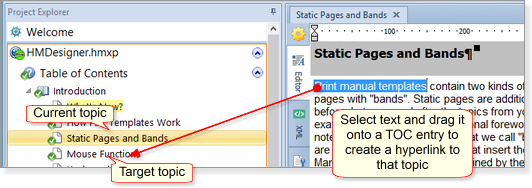
This is the fastest and easiest way to create a hyperlink and it is the method that you will probably use most frequently when working on a project. 1.Select the text you want to turn into a hyperlink in the editor.
2.Drag the selected text to the Table of Contents (TOC) in the Project Explorer and drop it on the topic you want to link to. 3.That’s it, your hyperlink is finished. You can then edit the hyperlink by double-clicking on it if you wish. |
Create a hyperlink manually
|
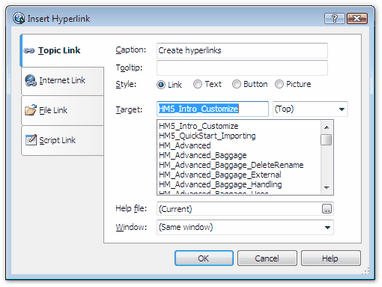
1.Select the text you want to use as the link. (This is optional with this method – you can also create a link without selecting anything first.) 2.Select Inset > Link in the Write tab or press Ctrl+L to display the Edit Hyperlink dialog. For the moment leave the default setting of Topic Link unchanged.
3.Select the Topic ID of the topic you want to link to from the list below the Target: field. 4.Choose a style for the link from the options on the left. 5.Click on OK to create the link. |
Create a hyperlink to an anchor
|
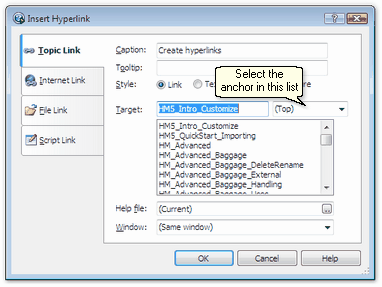
Sometimes you will want to link to a specific location in the middle of a topic instead of just displaying the top of the topic. This is achieved with anchors, which are named „link targets“ that you can insert anywhere in a topic. 1.In the topic you want to link to, click in the position for the link target and select the 2.Type a name for the anchor in the Anchor ID: field and click on OK to insert the anchor. Don’t worry about the other settings in the dialog at the moment. 3.Manually create a hyperlink (see above) to the topic containing the anchor. 4.In the Insert Hyperlink dialog select the name of the anchor you want to link to from the drop-down list next to the Target: field.
You can also activate an anchor for an existing link by double-clicking on the link and selecting the anchor from the list. |