TEXT SCRAMBLING in TRIAL VERSION OUTPUT! In evaluation mode, Help+Manual will scramble individual characters in random words in your published output files. This is a limitation of the free trial version. This help system was created with an evaluation copy of Help+Manual.
The New Project option creates some topics for you automatically but normally you will create topics yourself. Creating a topic in Help+Manual is very much like creating a new document in a word processor. Each topic in a project is actually an independent document, but you can manage all these topics as though they were a single document. this is
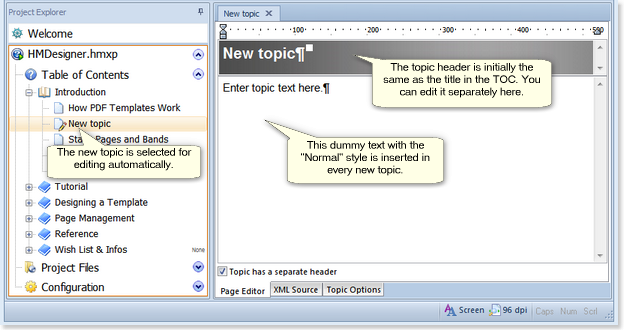
You will normally create new topics in the Table of Contents (TOC), which automatically creates both the topic file and an entry for the topic in the TOC, where you can move it around as you like. And you can also add text and other content to it, of course.
You can also create new topics in the Project Files/Topic Files section of the Project Explorer, but when you do this the topics will not have TOC entries – they will be „invisible“. Topics created in Topic Files can only be displayed with hyperlinks, they are used for popup topics and for information you don’t want to include in the TOC directly.
How to create a new topic
|
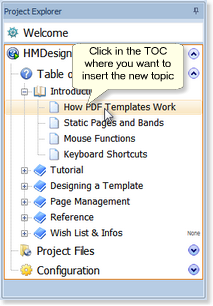
You can create topics in the project’s Table of Contents (TOC) and the Topic Files sections in the Project Explorer. You will normally create topics in the TOC so that they are included in the table of contents of your published project. 1.In the Project Explorer click in the position in the TOC where you want to insert a new topic.
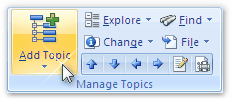
2.Select Add Topic in the Project tab of the Ribbon.
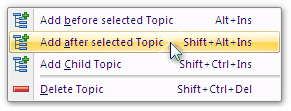
3.Choose where you want to insert your topic relative to the selected topic:
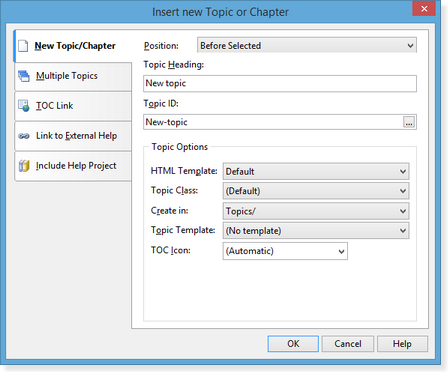
Insert Child inserts the new topic as a sub-topic of the selected topic, turning the parent topic into a chapter (if it is not already a chapter). 4.This displays the Insert New Topic or Chapter dialog:
Select the New Topic/Chapter option. Enter a heading (title) for the new topic. The Topic ID is created automatically from the heading. You can edit this if you like. Leave the HTML Template, Topic Class, Create in: and Topic Template: settings as they are. 5.After entering your settings click on OK to create the new topic and insert it in the TOC.
6.Once you have created a topic you can edit it and move it around in the TOC. |